Find the IP Address of any Computer connected to a Home Network

   
This post provides a step-by-step guide to easily and quickly find the IP address of any computer running Windows on your home computer network.

First, using the computer that you want the address for, click the "start button" on the lower left hand corner of the screen and select "Run".
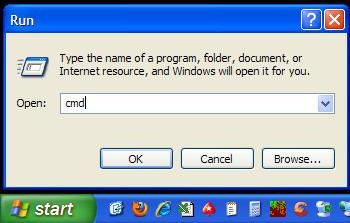
This will bring up the "Run" dialogue box. In the field labeled "Open:" type "cmd" without the quotes and click "OK".
This will bring up a Windows command line window. Click on the Title Bar of this window, it will read "C:\WINDOWS\system32\cmd.exe". Then, type "ipconfig /all" without the quotes. Be to include a space between "ipconfig" and "/all".
Now, press "Enter" on your keyboard. When you do you'll get a list. One of the list items will be labeled "IP Address". This is the IP address of this computer on your home network.

Bookmark and Share

Subscribe

Related Posts

Find the IP Address of the Router on a Home Network

  
This post provides a step-by-step guide to easily and quickly find the IP address of the router on your home computer network using a computer running Windows.

First, click the "start button" on the lower left hand corner of your computer and select "Run".
This will bring up the "Run" dialogue box. In the field labeled "Open:" type "cmd" without the quotes and click "OK".
This will bring up a Windows command line window. Click on the Title Bar of this window, it will read "C:\WINDOWS\system32\cmd.exe". Then, type "ipconfig /all" without the quotes. Be to include a space between "ipconfig" and "/all".
Now, press "Enter" on your keyboard. When you do you'll get a list. One of the list items will be labeled "Default Gateway". This is the IP address of the router on your home network.


Bookmark and Share

Subscribe

Related Posts

Fix MagicJack No Sound Problem


Recently, after using magicJack for my personal home phone service for more than 2 years without issue, suddenly it has no sound. I can hear a dial-tone and dial a number, but after that nothing. I can't hear the call ringing, but I can see from the magicjack softphone on my computer that the call is ringing and connects, remaining connected until I hang up, or the other party hangs up. But I can't hear a thing. My phone rings when I receive a call, but when I answer, again no sound.

So, what do I do?

One thing that has been noted repeatedly in magic jack reviews, is that the company does not provide customer service by phone. They maintain a searchable knowledgebase of frequently asked questions, and a live chat help service.

I've read complaints about the customer service, but you get what you pay for. At 20 bucks A YEAR you really can't expect a $12 AN HOUR customer service rep. In my opinion magicJack is a tremendous value and I've been extremely pleased with mine.

So I do what I always do when I have a technical problem, go to Google. It took a while, but the answer was there. Hopefully this post saves you the 4 hours of frustration I experienced in resolving my magic jack no sound problem.

The Fix: It turns out the problem was with my router. Odd, because I have had this particular router for about 3 months, and been using it with magicJack to make and receive calls without issue throughout this time. What I learned while researching the problem, is that some routers do not recognize that magicJack should be allowed to communicate over the Internet when sending and receiving call data, which is essential for the device to function properly.

The fix to this problem takes just a few minutes, requiring only that you Set-up Port Forwarding for magicJack. The only caveat is that you will need to repeat these steps whenever you restart your magic jack, or the computer the magicjack is connected to. A minor inconvenience for unlimited local and long distance phone service for just 20 bucks a year. Plus it takes just a few minutes once you know how.

Bookmark and Share

Subscribe

Set-up Port Forwarding for magicJack

    
In order for your magicjack usb Internet phone device to function properly, especially if you are experiencing the magicjack no sound problem, you may have to set up port forwarding for magicjack on your router. This is a somewhat technical procedure, but should take you just a few minutes following the instructions in this post.

First, download TCPview for Windows from Microsoft's website. They include instructions on the download page for using the program. The download is a .zip file. Basically, all you have to do is extract the program folder, and run TCPview by double-clicking the Tcpview program icon. TCPView allows you to see which ports on your computer magicJack is using to send and receive data. I've included a sample screenshot from TCPView below with my personal magicJack service running.


My personal experience is that you will only need to configure port forwarding to allow traffic on the highest port shown, in this case 62457, in order for the magicjack to function properly. Now that you know which ports magicjack is using, you need to configure port forwarding on your router to allow magicJack to send and receive data over the Internet using these ports.

Setting up port forwarding takes only a few minutes, but the exact steps vary depending on the manufacturer and model of your router. So, if you do not know how to setup port forwarding on your router, consult your router documentation, or go to Google and search for your router brand and model number, including the words "set up port forwarding" in your search query.

Below are a couple of additional resources that may be helpful when configuring port forwarding for your router. These links open in a new browser window or tab depending upon which Internet browser you are using.


Once you have correctly configured port forwarding on your router, you should have no further issue with your magicJack.

It's important to note that the UDP port magicJack uses to send and receive call data changes whenever the magicJack software, or the computer the magicJack is connected to, are restarted. So, you may need to repeat these steps whenever you restart your computer or your magicJack. A minor inconvenience for unlimited local and long distance phone service for 20 bucks a year. Plus it takes just a few minutes once you know how to set-up port forwarding for magicJack.

Bookmark and Share

Subscribe

About

 
The "Here's How To..." blog provides solutions to common problems, along with other generally useful information.

The blog is owned by Tony Cochran, Author and Publisher, currently residing in Des Moines, Iowa.

For all inquiries, including advertising, topic suggestions, or to submit a guest post, please use our contact form.

Contact Confirmation

 
Thank you for contacting us. Please allow up to 24 hours to receive a reply.

Contact Us


Questions? Comments? Feedback? Please complete our contact form.

Your Name:

Your Email Address:

Your Questions/Comments:


Please allow up to 24 hours for a reply.

Privacy Policy

 
We respect your right to privacy.

Information collected by us is used solely for replying to requests, sending information and tracking blog usage. We may use your email address to notify you of major changes to the blog or any special offers we are promoting. We will never sell or share your information. You have the option to unsubscribe from mailings at any time.

Cookies are used by us to store information for tracking and reporting purposes only. A "cookie" is a small file containing a string of characters that is sent to your computer when you visit a blog. When you visit the blog again, the cookie allows that blog to recognize your browser. Cookies may store user preferences and other information. You can reset your browser to refuse all cookies or to indicate when a cookie is being sent. However, some blog features or services may not function properly without cookies.

We use third-party advertising companies to serve ads when you visit our blog. These companies may use information about your visits to this and other blogs in order to provide advertisements about goods and services of interest to you. If you would like more information about this practice and your options about not having this information used by these companies, click here. Our advertisers may also collect data in the advertising process, e.g. tracking ad impressions, ads clicked on and product purchases for tracking and reporting purposes.

Terms of Use

 
Use of this blog implies acknowledgment of the following terms and conditions. We reserve the right to change or modify these terms at any time.

No Warranty

While we strive to insure the accuracy of the information on this blog, all information is provided as is and without warranty. Use of this information is at your own risk.

Legal Disclaimer

We are not responsible for claims made in advertisements appearing on this blog. Please fully research any offer that you respond to before investing time or money.


Reviews Disclosure

We occasionally make recommendations on this blog which include links to products or services. If you make a purchase using our link, we receive a commission on the sale. We believe in the products and services we recommend, basing our opinion on the value, helpfulness or quality of the product or service. We are not paid to recommend any product or service.


Copyright

No part of this blog may be reproduced in whole or in part without express written consent from the blog owner.